So I got the Creator Pro on June 6th.
It is now January 23rd. I don't have time to make a big post but I'll summarize how my personal experience has been.
Mods Done:
Spool Holders and Filament Guide: definitely the first things to print off of Thingiverse so that you can use any size spools and get them fed properly.
Zebra Plate: I was printing in ABS and it stuck too well to my build plate. It was so hard to remove that it tore the build tak off with it. I had to replace it but I thought it'd be good to get something removable and I found the Zebra plate stuff. It worked ok but now I'm using it with build tak on it and glue stick with just PLA. Haven't tried ABS yet. Removing parts out of an enclosure really sucks and I miss my removable build plate from the Finder.
PTFE Tube Dead: I should have known the PTFE tube was dead when I was changing filament from yellow to white and I kept getting yellow coloring in my prints for a while. Too lazy to fix it, I just moved and focused on the right nozzle.
Double Extruders: I wish I could say more positive things about it but I hardly ever use it. I wanted to do more 2 material stuff but I haven't had much success with water soluble filament or HIPS. It's on my to-do list but I definitely have not gotten value out of having 2 extruders. I like the left extruder better because it has the fan blowing directly on the parts.
MicroSwiss All Hot End: I got one to replace the left nozzle hot end. Might as well since the PTFE tube is gone. This is something I will do in the near future but I have bigger issues now.
Lubrication: remember to lubricate your axles and drives. I didn't do this for a long time which is probably I have the following issue:
X-axis Drive Issues: Today on Jan 23rd my x-axis is messed up. The machine just vibrates roughly for the x-axis. Rebooting helped a little and then it went back to it's old ways. Apparently this is a common problem that Makerbots had and it's one of my stepper motor wires that's screwed up. I don't know which wire it is but I'm considering just swapping out the entire wire assembly for a quicker fix. I wish I knew about this before I bought the Creator Pro.
Overall:
Given the cost and issues, I would have had better value buying another printer like a Prusa i3 MkII. I just don't get good value from 2 nozzles and the issues I'm having now would have been better time and money invested into something that was better designed. While the enclosure is a big plus, if I needed to have one then I'd look at doing just PLA on a Flashforge Guider or just getting something else that's enclosed and semi-portable. But remember that my needs are different from others. I have to bring my printers between locations and sometimes an enclosure helps people from not getting injured. So I don't totally regret buying a Creator Pro, it has just been more annoying than all my other printers.
Monday, 23 January 2017

Busted Level Sensor!
So I've been printing a lot lately. I like my Finders better than three other printers I have access to. But today one of my Finders self destructed.
The leveling arm fell down on it's own while printing. I don't know how it happened. I don't know why it happened. All I know is that it was dragging on top of prints until it bent itself useless:

Wednesday, 4 January 2017
Flashforge Finder PTFE Tube Replacement / MicroSwiss Upgrade
Greetings Everyone!
It has been a while since I posted here. I've been reallly busy.
I still like my Finders a lot. After 7 months with a lot of use, I really like:


It has been a while since I posted here. I've been reallly busy.
I still like my Finders a lot. After 7 months with a lot of use, I really like:
- the removable build plate: great for getting off those stubborn pieces that stuck too well. Compared to my Flashforge Creator Pro where I had something stick so hard, I ruined the build tak, the Finder has always been good.
- internal filament: this has been great for moving the printer around. I transfer it between home and work so it helps. I also use an external spool holder for bigger, cheaper rolls of filament which is fine too. The internal one has the advantage of stopping your print if/when you run out of filament though.
- level assist: this thing works great for me. I don't have to do the paper test and it's almost always pretty accurate.
But alas, I have hit a point where the Finder's biggest problem has popped up.
I've been printing PLA+ lately at 220C. No problems there. I tried some new colored filament and my prints were coming out weird. Here were my symptoms:
- prints came out structurally weak. As if there was not enough plastic coming out.
- I could hear a "ticking" kind of sound every now and then from the extruder. It sounds like the filament is slipping as it is being fed in
- there were gaps in my printing, it wasn't smooth
I immediately told my vendor (Digitmakers) and he knew right away what the problem was. Of course before I called him I wasted time by taking apart my extruder servo, cleaning the feed heads and trying it again, just to have the same problems.
So Digitmakers told me it was the PTFE tube that had to be changed. This is the plastic tube that goes down the heat break and basically feeds the filament from the extruder servo to the hot end. It can get messed up over time and that results in difficulty feeding the hot end.
Disassembly:
Flashforge made a pretty good video of this which I followed:
The one thing I didn't do was disconnect the "heating part" listed here:
This is where I get really paranoid because you can burn down your house if you screw this up.
This "heating part" includes the part that measures the temperature of your hot end known as the thermocouple. A fire once happened in a 3d printer because the person forgot to secure this and it basically fell out while printing. The 3d printer didn't know what the actual temperature was so it kept increasing the temperature.
So I didn't remove this at all. I kept all the electronics plugged in.

THIS IS WHERE I MADE A MISTAKE
It didn't cost me but I should have done it properly.
I removed the nozzle and the heat radiating tube or nozzle holder (the thing with the fins) with two wrenches. Make sure the wrenches you have are adjustable and fit properly. Don't use a needle nose plyer or something that will scratch things up. Make sure they fit snug on the heater block and the part you are twisting! Remember left-loosey, righty-tighty for directions to turn.
I removed both the heat radiating tube and the brass nozzle without problems but I was lucky. I should have heated it up before removing it. Although dangerous and scary, what could have happened is that the brass nozzle could have snapped inside the heat block and cause some serious problems! It didn't but it happened to someone before.
So I dodged a bullet and got good results.
Here is a photo of the original Finder nozzle and the PTFE tube. As you can see, the tube isn't looking so great. It's burned a bit and clogged up. This explains why extrusion was so difficult. Keep in mind this is not a problem with the Finder, this is something that will happen with all printers using similar set ups!

New Nozzle:
Since I needed a new nozzle, I could have gone for the same brass one, but Digitmakers had Micro Swiss nozzles. I had read that these were good so I went for the Mk10 plated nozzle the was wear resistant and a regular PTFE tube. Maybe next time I'll go for the all-metal one but that's more than twice the cost.

Before putting the nozzle and everything back together, I took the opportunity to clean out one of the drive gears of the extruder. Since it had been fighting to push filament through, it also had been shaving little bits off and reducing the effectiveness of itself. So I took a wire brush to it to clean out the pockets of the gear teeth.

Attaching the Nozzle:
This time I got instructions on how to do this right.
1. Hand tighten the nozzle on
2. Heat the machine up to PLA temp (220C is what I do PLA+ at so I went for that)
3. While it is hot, the metal expands a bit and you can tighten it more with wrenches

Putting everything back is not fun. There's a small set screw that is keeping the entire hot end assembly in place. This thing is easy to have fall out and hard to put back into its hole. After much fussing I got it back in. Make sure that the hot end is put all the way up so that you don't mess up your heights when you are levelling your build plate.
Then test it to make sure that your temperature sensor is working (and not falling out) so your house doesn't go on fire. I set it to pre-heat to 220C.

Finally feed some filament through!
It came out well and things look promising.

I ran a 20mm cube to see how well things thing worked.
And it worked well! Actually as I write this I just finished a 4 hour print and it seems like my printing quality went up a lot! I checked again to make sure the temperature sensor is not falling out and everything is ok and I'm going to print another 4hr job overnight.
What makes me feel better is that the Finder has a baffle on the underside which is surrounding the hotend. So it's unlikely that the thermistor can fall out from vibration. That makes me feel a bit better keeping it unattended. Of course I have a few fire prevention things in place in the washroom which I'll detail later.

Wednesday, 8 June 2016
Starting With the Creator Pro
Setup went well. Instructions in the manual were good enough.
Plate leveling went well also. The card included with the box that you can use for leveling is nice.
With my Finder I printed a filament tube guide from Thingiverse:
The bad thing is that the connector side snapped, but the good news it still worked.
I'm not sure if it's Flashforge's filament but the filament snapped TWICE while I was loading it!

Loading the PLA filament into the right extruder was fairly straight forward and just like the Finder.
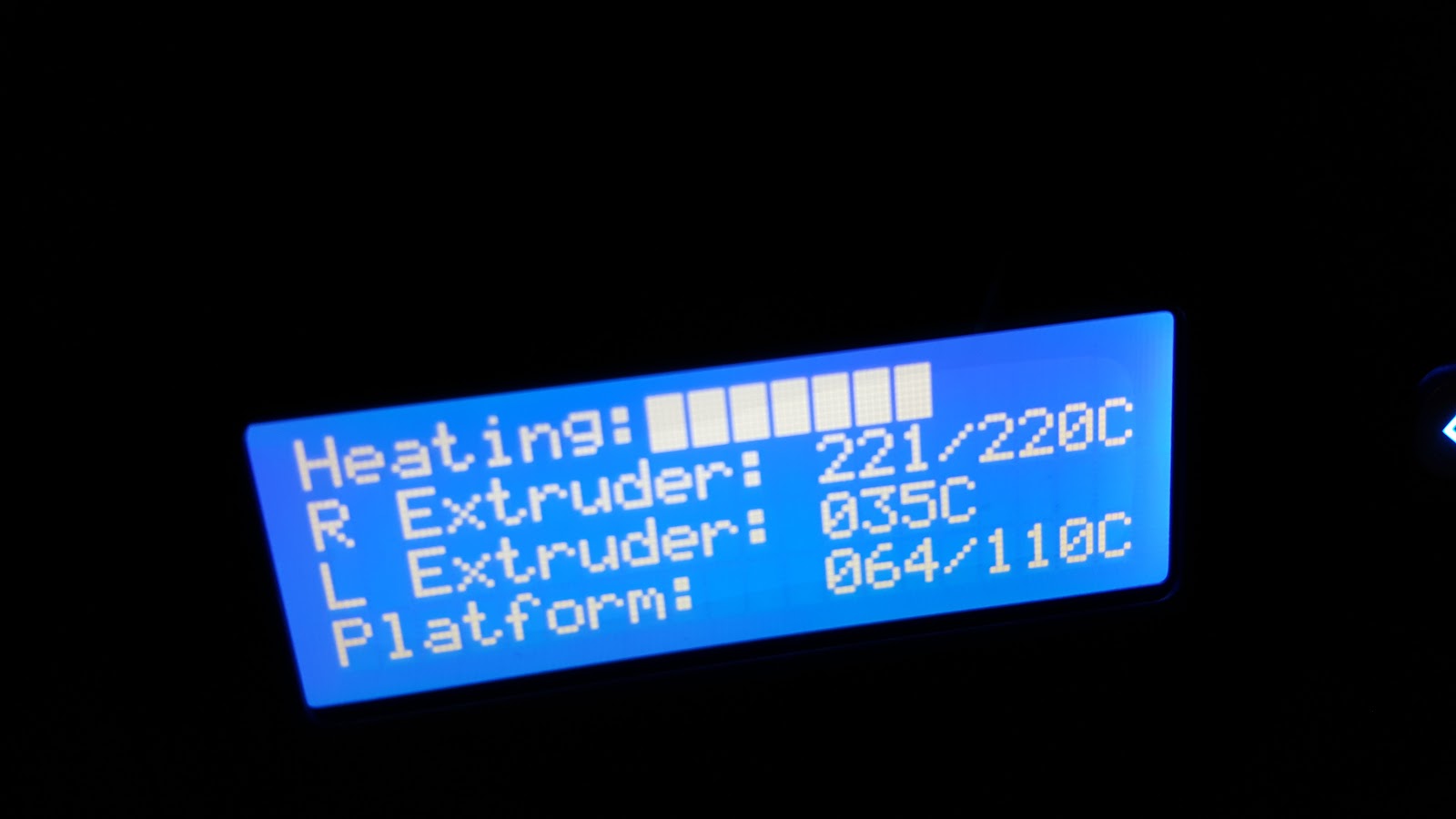
What's interesting is that the filament that came out was kind of red and merged with my green filament. I assume this shows the printer was tested with red filament before it came out of the factory.


Differences moving up from the Finder to Creator Pro:
- Interface: definitely not as nice as the Finder's touch screen. But this is just cosmetic preferences.
- Build plate leveling knobs - not as easy to get at like the Finder. Partially obstructed by the metal build plate. Not a huge issue, just different than the Finder.
- Heating the build plate will mean it will take longer to print but this is the sacrifice for not having parts lift. You can turn this option off I think.
- You can't remove the build plate so tougher parts have to be muscled on top of the build plate inside the machine. I'm concerned this can put off my z-axis.
Patience...steeper learning curve but it will all pay off in the end.
Monday, 6 June 2016
Day 0 with the Flashforge Creator Pro
Picked up the 2016 Flashforge Creator Pro and Simplify 3D from Digitmakers today! Also grabbed some filament including glow-in-the-dark and PLA+ to play with. Lots of learning to do in my summer!

 It was pretty stuck in the box, but with my wife's help we got the whole thing out.
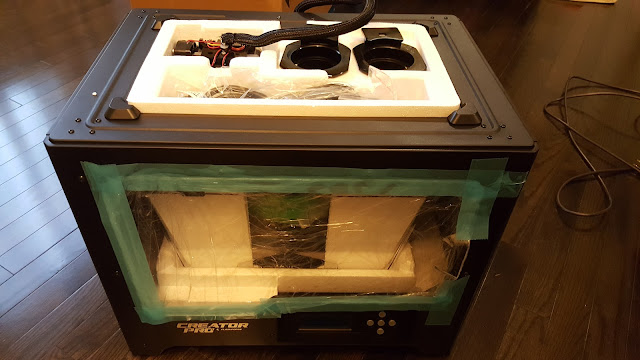 And here's what the extruder unit looks like before I put it to work. Good bye clean extruders!
 I had noted the heating block was bigger on one extruder and emailed Digitmakers about it. It's not a problem.
 Now the top of the Creator Pro has this chunk of styrofoam in it that is holding the spool holders and some cables and tools. The diagram shows it lifting out pretty easy but for me this was a HUGE problem. It was so jammed in there it took me 10 minutes to wrestle with it to get it out. Definitely not as easy to set up as a Flashforge Finder!
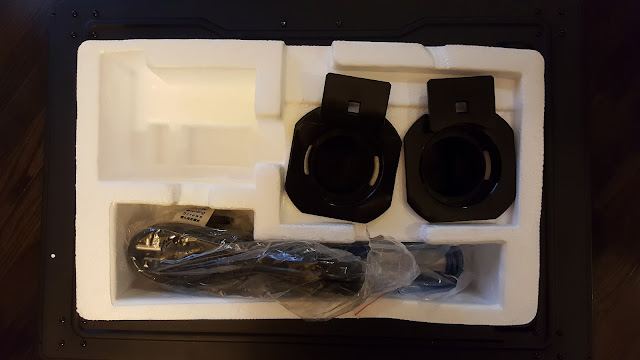 One thing I should point out is that it comes with a fan that will blow onto your print surface. I didn't even see this pointed out on the website or pictures before I bought the printer so it was a most welcome surpise!
 That's all for today! I'm going to print some Thingiverse mods before I put the Creator Pro to work. I'll put that up in the next post!

Opening the box there's the Quick Start Guide to go through that also has instructions on how to unpack to Creator Pro.


Sunday, 5 June 2016
30 Days with the Flashforge Finder
30 Days with the Flashforge Finder
340 hours of use, 1096 meters of filament used, 150+ projects printed

Hard to believe 30 days ago I walked out of Digitmakers in Richmond Hill, Ontario, Canada with my first 3D printer. Actually it was 2 of them. I'll explain why I have to 2 later but for now I can say that it certainly accelerated my learning as I had at least one on me at work and at home.
My background and goals: To understand my angle on how I evaluated this printer, my experience with 3D printing is with using the industrial quality uPrint Plus for about 3 years but zero experience with consumer level 3D printers. I have some cad modelling experience as a mechanical engineer and my goal is to build a 3D printing hub that schools can use. So I am looking for an ok consumer level printer that is portable, relatively cheap (so I can buy multiples) and easy to maintain. There isn't a lot of in-depth talk about the Flashforge Finder online so I hope this will provide you with lots of information to help you make an informed choice of what printer might work best for you.
My background and goals: To understand my angle on how I evaluated this printer, my experience with 3D printing is with using the industrial quality uPrint Plus for about 3 years but zero experience with consumer level 3D printers. I have some cad modelling experience as a mechanical engineer and my goal is to build a 3D printing hub that schools can use. So I am looking for an ok consumer level printer that is portable, relatively cheap (so I can buy multiples) and easy to maintain. There isn't a lot of in-depth talk about the Flashforge Finder online so I hope this will provide you with lots of information to help you make an informed choice of what printer might work best for you.

To this date I can say that every single challenge I had with the Finder I was able to remedy. I printed a lot of stuff and had many failures, but I saw that as all part of the learning process in getting into 3D printing. It's all here on the blog to give you an honest look at what happened when someone new to 3D printing at home chose the Finder to work with.
1. The Good
- The printer is fairly portable as I have been bringing them back and forth from work most of the week days. The built in filament caddy helps a lot with this and so does the cube shaped body design.
- Comes with all tools you may need to maintain or fix it
- Comes with an easy to use slicer program - FlashPrint
- USB file loading works great with good menu control (and it comes with a usb stick)
- The Flashprint software is a pretty versatile program where you can duplicate and cut models
- Flashprint has an advanced mode where you can tweak speeds, temperatures, motor power and almost anything I can think of with the printer's abilities.
- The Finder has calibration features from the LCD menu
- Bed leveling assist is great for beginners but you can learn to do without it
- Not too loud when operating
- Plays a song when the print is finished
- Print area well lit with LED light panels
- The removable build plate makes it a lot easier to take your parts out
- Removable build plates increase production times if you buy a spare
- Build plate surfaces can also be replaced
- Filament jams aren't too complicated to fix
- The body is available in multiple colors, not just red!
- $650CAN is great for what you get!
2. The Bad
- The X and Y axis do slam into the sides of the printer. Galen's recommendation is a good one.
- Tough to print long, flat objects but I eventually solved this for most projects.(see past posts).
- The stepper motors running the X and Y axis can get pretty hot and are supported by plastic parts. I'm kind of concerned about this but so far it has been ok.
- It needs to come with nozzle/hot end cleaning tools as a jam caused filament to get all around the hot end and now it smells like burnt PLA
- It needs an external filament caddy feature because some people may not like buying the more expensive Flashforge PLA
- It needs a Clear Memory function on the LCD to clear the copied files.
- Flashprint underestimates build times. I am doing a study on how far off it is, but it will take at least 15% more time than it states.
- Only prints in PLA but that is stated upfront.
3. The Ugly
- Flashforge filament had tangled twice in one roll.
- I'm still unable to connect wirelessly. This is a work in progress but so far no results.
- Some rafts are impossible to remove without wrecking the edge that it was connected to.
Tips for New Users:
- Be patient. 3D printing has a learning curve and you will have to experiment with what works before getting things perfect. Sometimes prints come out perfect the first time. Sometimes they screw up after several runs. Either way, you should accept that each failure is part of the learning experience that is part of getting good at 3D printing.
- Learn a CAD package. I recommend starting with Tinkercad. Make an Autodesk account so it saves your work and then do everything in the Lessons section. This way you can import and modify things you want to print or even make some of your own. When you get good and need more ability try Autodesk's Fusion 360 which also has a great section on learning how to use it. Some also like 123D Design which is in between Tinkercad and Fusion.
- Printing with white helps you spot errors easier in your prints in my opinion. I can spot imperfections easier and see if stuff burned.
- You don't have to level your bed every print. I think started levelling it maybe every 10 prints but also depending on how long the print is and if I travelled with the printer. On the Finder I cheat the bed level a bit by not unscrewing everything all the way and just leaving it to check. Maybe this screws it up but I've had fine results so far.
- If you want greater control of things in FlashPrint go to File --> Preferences and change the window to Expert mode. This will let you fine tune a lot of things in the print! I will post more on this later.
- Getting things to stick. The options are : nothing, blue tape, glue stick, glue stick and blue tape. The combo seems to work best for me when I don't want to take chances but sometime sI get prints to stick on the bare build plate. If you have trouble with curling on long flat pieces, add a raft. If the raft sticks too much to your print, raise it 2mm above and add supports and a raft. It will create a rough edge but you won't have curling.
- If your parts don't fit on your build plate, just slice them up using the cut function in Flashprint. You can cut cut parts too and auto arrange them later or delete them and separate them into different print files.
- Save your files on the USB and sort things into a "done" folder so you don't have to scroll a lot to find your latest print. In the Finder it will sort them by date.
- Use the USB to load prints, don't use your computer hooked up to it. That was the advice of the store and I don't plan on finding out why.
- Add Galen's end stops to your X/Y axis to stop the smashing into the sides.
Overall this is an awesome printer and I can do a lot with it that suit my needs. My goals for owning a 3d printer is to use it in a classroom setting and develop a 3d printing hub for classes to use. So I am needing many printers to increase my output to serve 100's of kids. I also need to bring it from school to home, so stability in structure was important to me. I am willing to sacrifice some flexibility and quality to achieve this. Ideally I'd like Lulzbot Taz 6's but for the price of one of those, I can get 5 Finders and I have to go with output ability and portability. I'm also funding this hub with my own money since my school will only allow the purchase of 3D printers that are $5000+ (yes, it makes no sense).
In the future I need to play with the advanced settings on FlashPrint to see if I can refine the quality some more. So far it has been great, but I know it can do better especially on the first layer.
I am currently looking at 2 more Finders or a Flashforge Creator Pro for my next one...or maybe even 3 Tarantulas or 3 Wanhao Duplicators if I can set up a permanent print room in my home.
If I get something that's not the Finder, I'll blog some more for you all.
My 3D Printing Tool Kit
What's currently in my 3D printing tool kit:
First of all lets frame this right: My kit is for when I go traveling with my 3D printer which I do almost ever day.

Hobby Tool Box: I got this from Solutions but I'm not sure if they sell it any more. It basically expands when you open it, has 2 levels and I'm able to fit almost everything inside.
In the Tool Box:
- Hex wrenches and screwdriver that came with the Flashforge Finder
- Elmer's Washable Gluestick (always have a spare)
- 3D printed Ring Sizers (test people's ring sizes before you build the ring)
- Work Gloves (wear the one that holds the part you are trying to scrape off. This is so that my scraper does not jab my hand since I don't want to bleed all over my 3d print!)
- Sandpaper

- Husky Paint Scraper from Home Depot
- Plastic paint scraper from Walmart
- Metal eating utensil knife (before I got the scrapers...don't use this as much now)
- Tweezers
- Long needlenose plyers
- Wire clippers
- Elmer's Washable Gluestick
- Husky Utility Knife (great for cutting painter's tape)
- Blue Painter's Tape (get the widest one you can!)
- Scissors
- File (for smoothing out rough printed edges)

- Vacuum seal bags with dessicant bags (I save them from various things and use them here to help stop the stored filament from absorbing any moisture)
- Spare build plates and build plate sheets (I like a faster turnover)
- Digital caliper (for measuring part accuracy. Got a cheapy one from Amazon)
- Measuring tape

Saturday, 4 June 2016
Ring Sizers
Ring Sizers
http://www.thingiverse.com/thing:11458
118min/1.81m/$0.74
I want to make rings as a project for my students so I dug up my old plastic ring sizer. It was missing 2 rings so I looked up new ring sizers on Amazon. The decent ones were like $15, less if it's plastic. Then I realized I COULD PRINT MY OWN!!!!
On to Thingiverse and there they were! Ring sizers!
Greatest 3D printing moment so far!
I loaded it up. Tried blue tape + glue and then I heard things falling out of the printer. Came to find this epic fail:

Cleaned it up a bit and added a raft. Worked out MUCH better, although I had to use a lot of material with the raft now. But the rings work great and separate very well from the raft.

http://www.thingiverse.com/thing:11458
118min/1.81m/$0.74
I want to make rings as a project for my students so I dug up my old plastic ring sizer. It was missing 2 rings so I looked up new ring sizers on Amazon. The decent ones were like $15, less if it's plastic. Then I realized I COULD PRINT MY OWN!!!!
On to Thingiverse and there they were! Ring sizers!
Greatest 3D printing moment so far!
I loaded it up. Tried blue tape + glue and then I heard things falling out of the printer. Came to find this epic fail:

Cleaned it up a bit and added a raft. Worked out MUCH better, although I had to use a lot of material with the raft now. But the rings work great and separate very well from the raft.

Megaman X - fail and fix
Megaman X - 150% scaled up
503min/21.53m/$1.63
One of my students asked me to print this Megaman X figure. It was small so I scaled it up so the details could show. I also put the print quality to Fine so that the curves would come out nicer.
It took me 3 tries to get this right as demonstrated below.
1st try: raft + supports, standard suppose from Flashrpint. Failed because supports in both arms fell.
2nd try: added custom supports to the Flashprint ones. Left are OK, right arm fail as support broke.
3rd try: went nuts with custom supports for the right arm. SUCCESS!!!


The build time is pretty crazy. Almost 10hrs! This is easily the biggest print I've done.

Partway through I checked my 3rd print to see this and was relieved I finally got a good configuration to print.

D&D Earth Elemental
D&D Earth Elemental
137min/7.37m/$0.56
mz4250's elemental series are all pretty awesome. I had a bit of trouble printing this one. I thought it was a pretty solid design with supports in but I got a few fails. I thought it would stick well to a new sheet face. Nope.
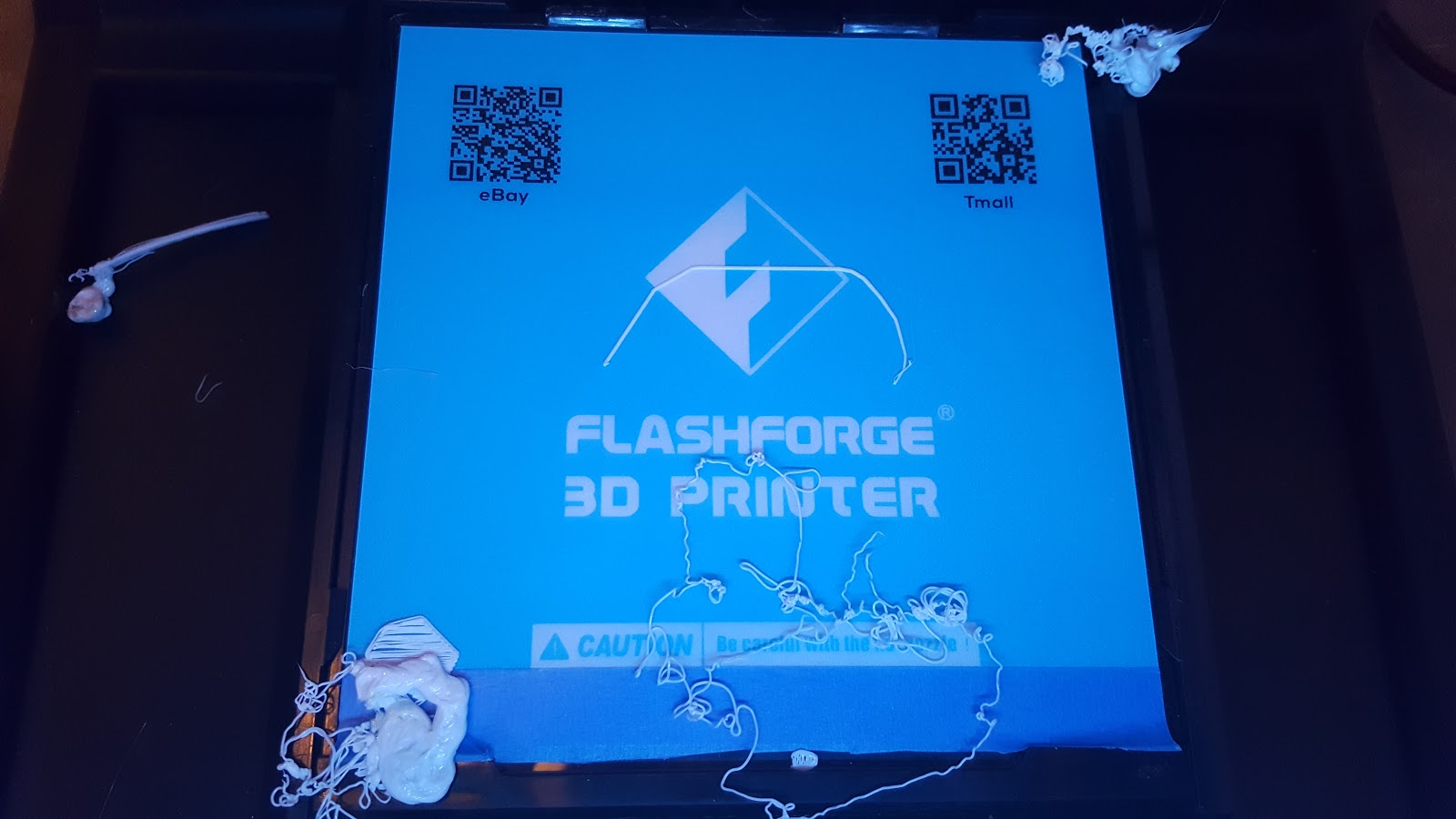

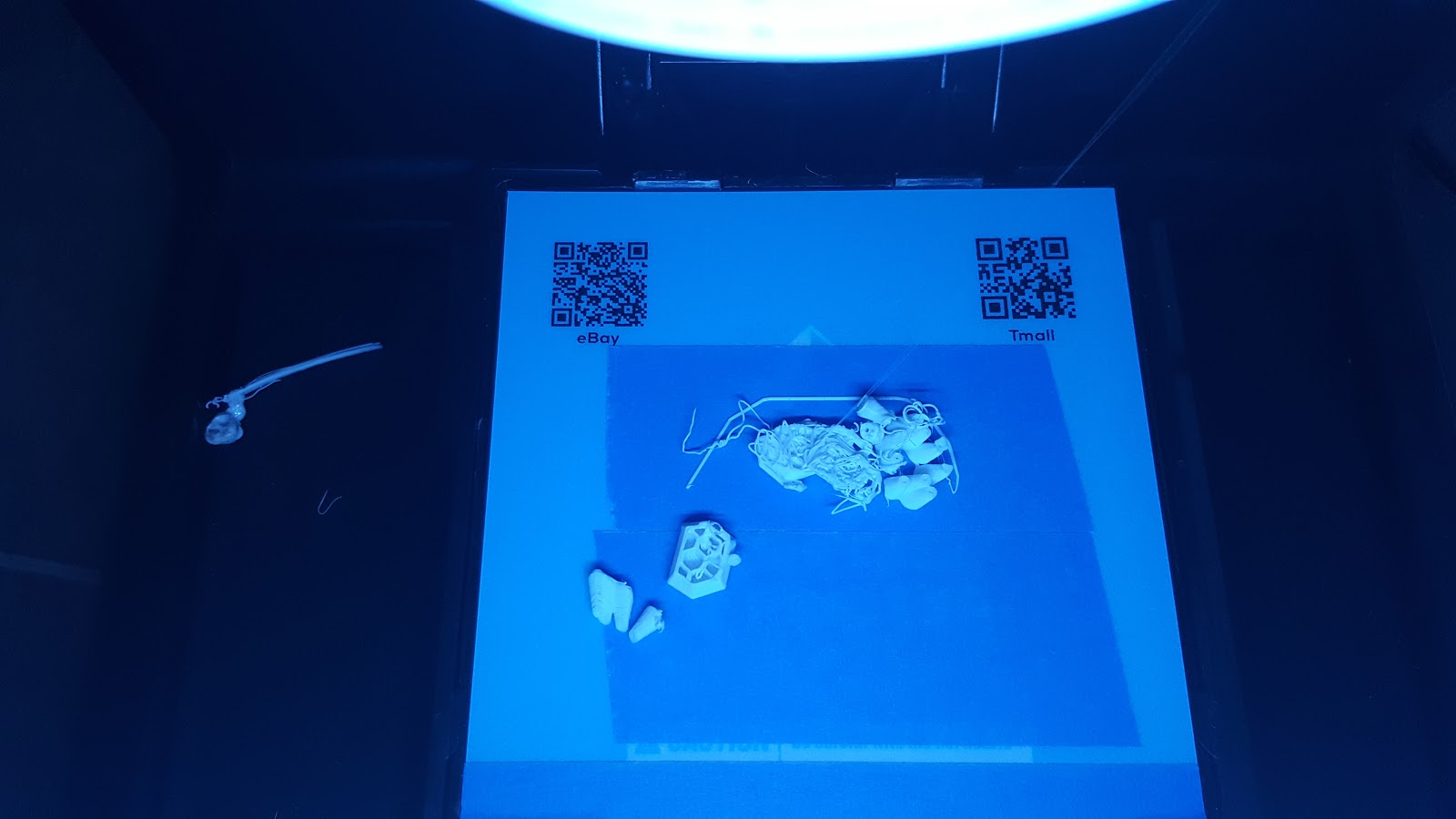
Great figure. Put those rafts in!

Subscribe to:
Posts (Atom)